
Buyer guide
Mechanical Keyboard Sounds on Mac: The 2026 Guide to Typing Sound Apps
What typing sound apps do, the features that matter, and how to choose a sound that fits your work.
Quick answer
The best typing sound app for Mac feels instantaneous, offers multiple sound profiles, and gives you quick control over volume and tone. If the sound lags or feels harsh, you will stop using it. If it feels warm and subtle, it becomes part of your workflow.
How typing sound apps work
These apps listen for keystroke events and trigger short sound samples in response. The best ones are low-latency and let you shape the sound so it feels like part of the keyboard rather than a noisy overlay.
How to judge latency
Latency is the difference between the keypress and the audio. Even small delays break the illusion.
- Open a blank document and type quickly.
- Listen for a lag or “slapback” effect.
- If the sound feels late, it will never feel natural.
What high-quality packs sound like
Better sound packs feel natural because they are consistent and not overly sharp. You can usually tell quality in the first minute.
- Clean attack without a harsh spike.
- Short, controlled decay instead of a long ring.
- Minor variation so the sound does not feel robotic.
Seven features that matter
- Low latency. The sound should hit instantly.
- Sound pack variety. Warm, clicky, and vintage options let you match your mood.
- Mix controls. Volume, tone, and resonance should be easy to adjust.
- Menu bar access. You should be able to toggle sound in seconds.
- Device routing. Headphones or external speakers give you control over who hears it.
- Lightweight performance. It should not drain battery or CPU.
- Privacy clarity. The app should explain how it uses keystrokes.
Mixing tips that feel natural
The goal is to feel the sound, not notice it. Small adjustments go a long way.
- Turn the volume down until it almost disappears.
- Reduce high end if the sound feels sharp or tiring.
- Increase resonance only if the sound feels too dry.
Mechanical vs typewriter vs cinematic
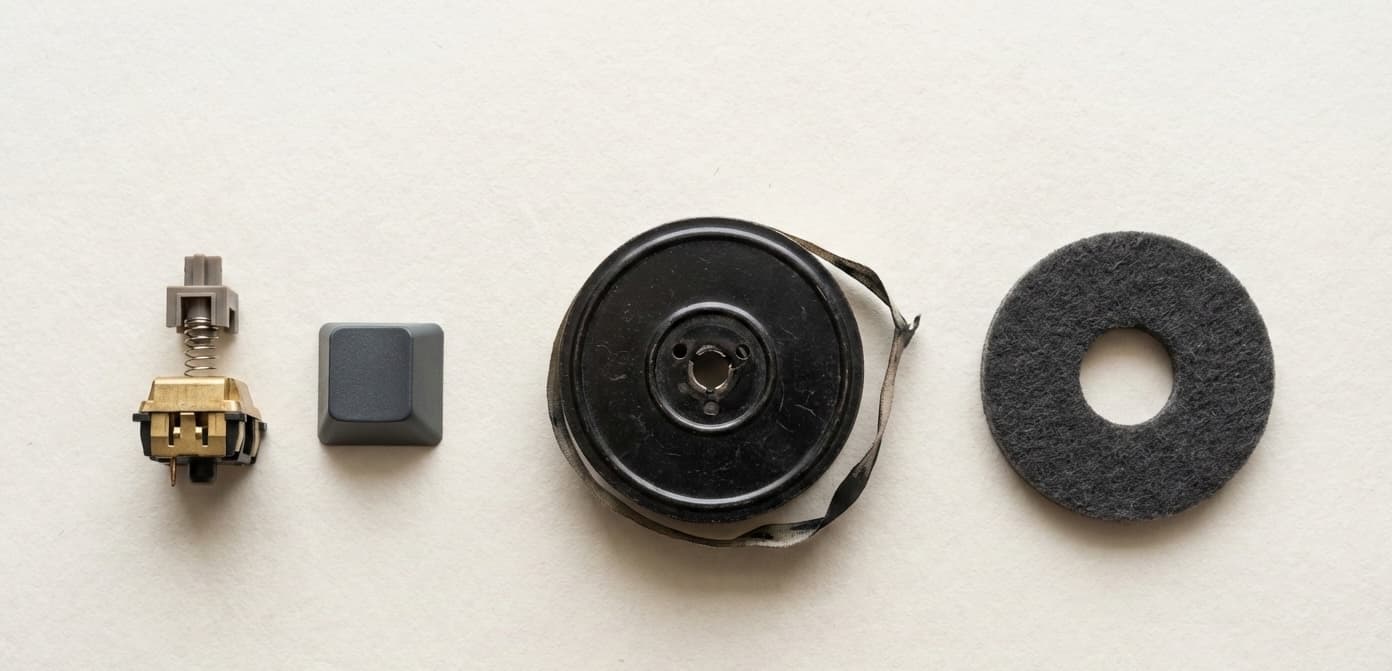
Mechanical packs are tight and modern. Typewriter packs are textured and nostalgic. Cinematic packs are soft and ambient. A good app lets you switch between all three so the sound fits the work you are doing.
A quick comparison test
Use this simple test when trying multiple apps.
- Type for one minute in each app at the same volume.
- Choose the pack that feels easiest to ignore while typing.
- Turn the volume down one more step and repeat.
Picking the right setup
Writing sessions
Choose warmer packs and lower the volume so the sound stays supportive, not distracting.
Coding or design work
Slightly crisper packs can add rhythm without being harsh.
Shared spaces
Keep volume low or route sound to headphones so you keep feedback without noise.
When to turn it off
Sound feedback is great, but it is not always appropriate. Turn it off during calls, on shared microphones, or when you are working in quiet public spaces.
Pricing and value
Most typing sound apps are inexpensive, but the real cost is whether you keep using them. Choose the one that feels natural quickly, not the one with the biggest list of features.
A 24-hour trial plan
- Use one pack for a full writing or coding session.
- Switch packs the next day and compare fatigue.
- Keep the winner and delete the rest.
Why Thock fits the list
Thock focuses on warm, tactile sound packs inspired by classic keyboards. It sits in the menu bar, stays lightweight, and lets you tune tone without extra setup.